Archive for the ‘Tutorials’ Category
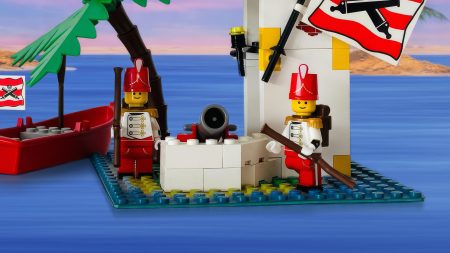
PICTORIAL REVIEW: 6242 Soldier’s Fort by Lego12
Thursday, November 13th, 2008Lego12 delivers us a comprehensive set review of the new 6242 Soldier’s Fort. Turns out it’s a Modular Design!
Lego12 has took dozens of pictures which display every facet of this wonderful new set. There are even a few surpirses which have went unnoticed by the general pictures.
Dive into the Pirate LEGO Forum to see this set analysed in scrunitizing detail!
The Wonders of RSS
Monday, October 27th, 2008RSS stands for Really Simple Syndication and its purpose is to easily and instantly distribute information across the Internet.
Readers can subsribe to RSS Feeds and have information sent straight to their Web Browser or News Reader the moment it is published on the Internet.
For example: Everytime the Classic-Pirates.com frontpage gets updated a headline is sent to the Web Browser or News Reader of everybody who is subscribed to the Classic-Pirates.com News Feed. They’re instantly told something new has been added so all they need do is click upon the headline to go to the latest information. How great is that?
Don’t know how to use RSS?
No problem! We’ve prepared some helpful tutorials to get you started. Learn how to Subscribe to RSS using:
Problems? Questions?
Never fear! We’re here to help! Discuss the Classic-Pirates.com News Feed in the LEGO Pirates Forum. Let us know if you’re having trouble or using a program we haven’t got a tutorial for.
Subscribe to RSS Feeds using Facebook
Sunday, January 1st, 2006This tutorial provides illustrated step by step instructions for subscribing to RSS Feeds using Facebook.
Important!
The tutorial assumes you have registered a Facebook account. If you don’t have a Facebook account please visit Facebook.com for further instructions.
What is Facebook?
Facebook is a Social Networking website that enables people from all over the world to interact. It has many tools to allow this interaction, one of those being the ability to publish RSS Feeds straight to user profiles.
Step 1
Visit Facebook and view your Profile. Above the Update Status Input Box is a Dropdown Menu triggered by clicking upon the purple triangle which faces downwards.

From the Dropdown Menu select Import.
Step 2
The Update Status Input Box will be replaced with Import Options.

Click on Blog/RSS.
Step 3

Enter http://www.classic-pirates.com/feed into the Public URL Input Box and click the Import Button.

Facebook will process the RSS Feed and once complete it will display the above information.
Congratulations!
Now, every time the Classic-Pirates.com frontpage is updated a snippet of information will appear on the subscribers Facebook profile.

Problems? Questions?
Never fear! We’re here to help! Discuss the Classic-Pirates.com News Feed in the LEGO Pirates Forum. Let us know if you’re having trouble or using a program we haven’t got a tutorial for.
Other RSS Readers?
To see our complete list of RSS Reader Tutorials visit the Wonders of RSS page.
Subscribe to RSS Feeds using Feedreader
Sunday, January 1st, 2006This tutorial provides illustrated step by step instructions for subscribing to RSS Feeds using Feedreader.
Important!
The tutorial assumes you have installed a working copy of Feedreader version 3 or above. If you have not installed Feedreader, please visit the official Feedreader website for further instructions.
What is Feedreader?
Feedreader is a desktop RSS Reader which enables you to access RSS Feeds. It can be launched when Windows first loads and sits in your System Tray for convenient access.
Step 1
Launch Feedreader then move your mouse over to the Dropdown Menus.

Select File -> New -> Feed OR press the F3 button.
Step 2
The Add Feed Input Box will appear.

Enter http://www.classic-pirates.com/feed into the Add Feed Input Box and click the Ok Button.
Wait for a moment while Feedreader downloads the RSS Feed.
Step 3
A list of News Items will appear in the Middle Pane.

Click on the News Item Titles and the complete News Item will appear in the Right Pane.
Step 4
You can Minimise Feedreader to the System Tray by closing it.
Go to File -> Exit OR click the X button in the top right corner of the Feedreader Window and a dialogue box will appear.

Ensure the Remember my decision Checkbox is checked then click the Minimize to tray button.
Congratulations!
Every time the Classic-Pirates.com frontpage is updated the Feedreader will be updated simultaneously and a notification will appear in the bottom right corner of your screen.

To access Feedreader at any time click on the three-dimension cube icon in the System Tray.
Problems? Questions?
Never fear! We’re here to help! Discuss the Classic-Pirates.com News Feed in the LEGO Pirates Forum. Let us know if you’re having trouble or using a program we haven’t got a tutorial for.
Other RSS Readers?
To see our complete list of RSS Reader Tutorials visit the Wonders of RSS page.
Subscribe to RSS Feeds using Firefox
Sunday, January 1st, 2006This tutorial provides illustrated step by step instructions for subscribing to RSS Feeds using FireFox.
Important!
The tutorial assumes you have installed a working copy of FireFox version 2 or above. If you have not installed FireFox, please visit the official FireFox website for further instructions.
Step 1
Navigate to the Classic-Pirates.com website and click upon the RSS button (as pictured above).
OR
Enter http://www.classic-pirates.com/feed into the Address Bar of your FireFox browser. Clicking on the link should open it in a new Browser Tab.
Step 2
In the webpage which loads you should see the following:

Click upon the Subscribe Now button.
Step 3a
A dialogue box will appear:

This dialogue box allows you to choose whether you want to add the RSS Feed to the Bookmarks Toolbar which by default runs horizontally beneath the Navigation Toolbar.
Click the Add button.
Step 4a
The Classic-Pirates.com Feed will now appear as a Dropdown Menu in the Bookmarks Toolbar.

Note
If your Bookmarks Toolbar already has numerous links, the Classic-Pirates.com News Feed Menu will appear in the Overflow Menu.

To locate the News Feed Menu click upon the >> Button on the far right of the Bookmarks Toolbar.

The Overflow Menu will appear with a list of links that can’t fit into the Bookmark Toolbar. The Classic-Pirates.com News Feed will most likely be placed at the bottom of the Overflow Menu.
Step 3b
Alternatively you can add the RSS Feed to the Bookmarks Pulldown Menu.

Click on the Create In Dropdown Combo Box and change the option to Bookmarks Menu or the Bookmarks Folder you want it to appear in.
Now click the Add button.

The Classic-Pirates.com News Feed will appear as a sub-menu in the Bookmarks Menu.
Note
The News Feed sub-menu will probably appear at the very bottom of the Bookmarks Menu, so you may need to drag it to the desired position.
Congratulations!
Every time the Classic-Pirates.com frontpage is updated, the Classic-Pirates.com News Feed menu will be updated simultaneously.
Problems? Questions?
Never fear! We’re here to help! Discuss the Classic-Pirates.com News Feed in the LEGO Pirates Forum. Let us know if you’re having trouble or using a program we haven’t got a tutorial for.
Other RSS Readers?
To see our complete list of RSS Reader Tutorials visit the Wonders of RSS page.
Subscribe to RSS Feeds using Internet Explorer
Sunday, January 1st, 2006This tutorial provides illustrated step by step instructions for subscribing to RSS Feeds using Internet Explorer 7.
Important!
The tutorial assumes you have installed a working copy of Internet Explorer version 7. If you have not installed Internet Explorer please visit the official Internet Explorer website for further instructions.
Step 1
Navigate to the Classic-Pirates.com website and click upon the RSS button (as pictured above).
OR
Enter http://www.classic-pirates.com/feed into the Address Bar of your Internet Explorer browser
OR
Click on the link to open it in the Favorites Center.
Step 2
The RSS Feed will load.

Click on the Subscribe to this feed link.
Step 3
A dialogue box will appear.

Click on the Subscribe button.
Step 4a
Now the Classic-Pirates.com News Feed will appear in the RSS Feed Dropdown Menu in Internet Explorer.

Click upon Classic-Pirates.com Dropdown Menu Item to be taken to the RSS Feed.
Step 4b
The Classic-Pirates.com News Feed also appears in the Favorites Center.

First Click upon the Favorites Center Icon (the orange star) and then the Feeds button.
A list of RSS Feeds you have subscribed to will appear. Click upon the Classic-Pirates.com Feed Link and you will be taken to the RSS Feed News Items.
Congratulations!
Every time the Classic-Pirates.com frontpage is updated, the Classic-Pirates.com News Feed will be updated simultaneously.
Problems? Questions?
Never fear! We’re here to help! Discuss the Classic-Pirates.com News Feed in the LEGO Pirates Forum. Let us know if you’re having trouble or using a program we haven’t got a tutorial for.
Other RSS Readers?
To see our complete list of RSS Reader Tutorials visit the Wonders of RSS page.